Decorated Window
Compose for Desktop does not allow drawing custom content in the title bar while keeping native window controls and native behavior (drag, resize, double-click maximize). You must choose between a native title bar you cannot customize, or a fully undecorated window where you reimplement everything from scratch.
The decorated window modules bridge this gap. They are a fork of Jewel's decorated window, without any dependency on Jewel itself. Key differences from Jewel:
- No JNA — all native calls use JNI only, removing the JNA dependency entirely
- Design-system agnostic — no Material dependency; easily map any theme (Material 3, Jewel, your own) to its styling tokens
DecoratedDialog— custom title bar for dialog windows, which Jewel does not provide- Reworked Linux rendering — the entire Linux experience has been rebuilt from the ground up to look as native as possible, even though everything is drawn with Compose: platform-accurate GNOME Adwaita and KDE Breeze window controls, proper window shape clipping, border styling, and full behavior emulation (drag, double-click maximize, focus-aware button states)
Module Structure
The decorated window functionality is split into three modules:
| Module | Artifact | Description |
|---|---|---|
decorated-window-core |
nucleus.decorated-window-core |
Shared types, layout, styling, resources. No platform-specific code. |
decorated-window-jbr |
nucleus.decorated-window-jbr |
JBR-based implementation. Uses JetBrains Runtime's CustomTitleBar API on macOS and Windows. |
decorated-window-jni |
nucleus.decorated-window-jni |
JBR-free implementation. Uses JNI native libraries on all platforms, with pure-Compose fallbacks when native libs are unavailable. |
Both decorated-window-jbr and decorated-window-jni expose the same public API. Choose the one that fits your runtime:
decorated-window-jbr — JetBrains Runtime implementation
Uses JetBrains' official CustomTitleBar API. This is the more battle-tested option, backed by the same code that powers IntelliJ IDEA and other JetBrains products. Requires JBR.
However, there are a few known issues on Windows:
- The window cannot open in maximized state directly — you need to use a
LaunchedEffectwith a short delay after the window appears, then setWindowPlacement.Maximized - Title bar drag events are occasionally missed, causing the window to not follow the cursor during drag
These are upstream JBR bugs, not Nucleus bugs. The module throws an IllegalStateException at startup if JBR is not detected.
Tip
When running via ./gradlew run, Gradle uses the JDK configured in your toolchain. Make sure it is a JBR distribution if using this module.
decorated-window-jni — Nucleus native implementation
Entirely implemented by Nucleus using JNI native libraries on all platforms. None of the JBR bugs mentioned above are present — window maximization and drag work reliably.
This module does not depend on JBR, making it compatible with any JVM (OpenJDK, GraalVM Native Image, etc.). It was specifically designed for use cases where JBR is not available, such as GraalVM native-image builds. On Linux, pair it with linux-hidpi for correct HiDPI support.
Less battle-tested
While the JNI module has no known bugs, it has not been as widely tested as the JBR implementation. Use it with appropriate caution in production, and report any issues you encounter.
Installation
Choose one implementation:
dependencies {
    // Option 1: JBR-based (requires JetBrains Runtime)
    implementation("io.github.kdroidfilter:nucleus.decorated-window-jbr:<version>")

    // Option 2: JNI-based (works on any JVM)
    implementation("io.github.kdroidfilter:nucleus.decorated-window-jni:<version>")
}
If you use Material 3, add the companion module:
dependencies {
    implementation("io.github.kdroidfilter:nucleus.decorated-window-material:<version>")
}
Note
See decorated-window-material for automatic MaterialTheme.colorScheme wiring.
Quick Start
fun main() = application {
    NucleusDecoratedWindowTheme(isDark = true) {
        DecoratedWindow(
            onCloseRequest = ::exitApplication,
            title = "My App",
        ) {
            TitleBar { state ->
                Text(
                    title,
                    modifier = Modifier.align(Alignment.CenterHorizontally),
                    color = LocalContentColor.current,
                )
            }
            // Your app content
            MyContent()
        }
    }
}
Screenshots
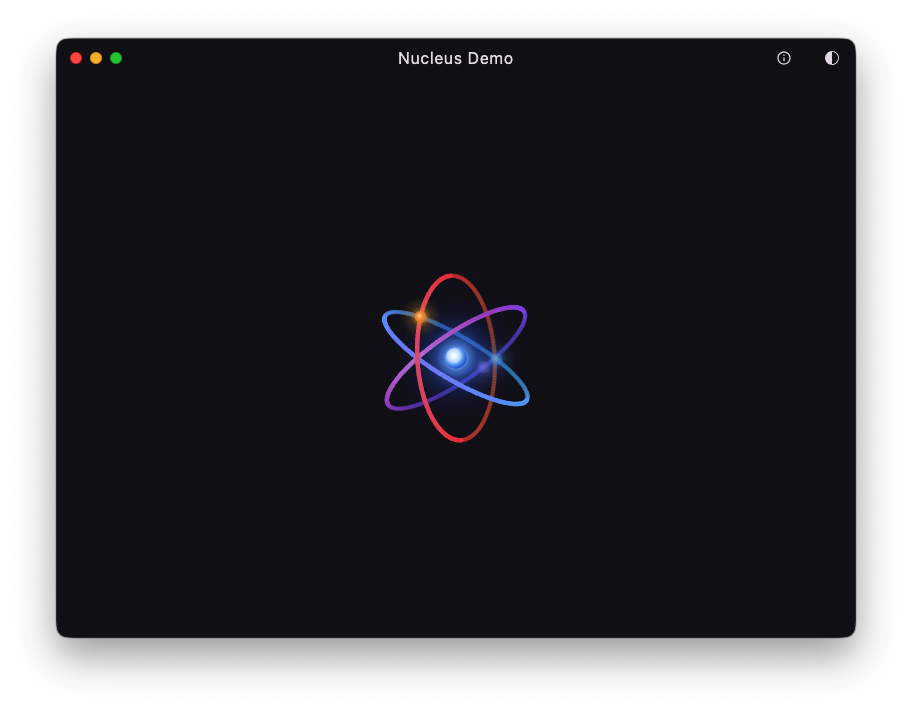
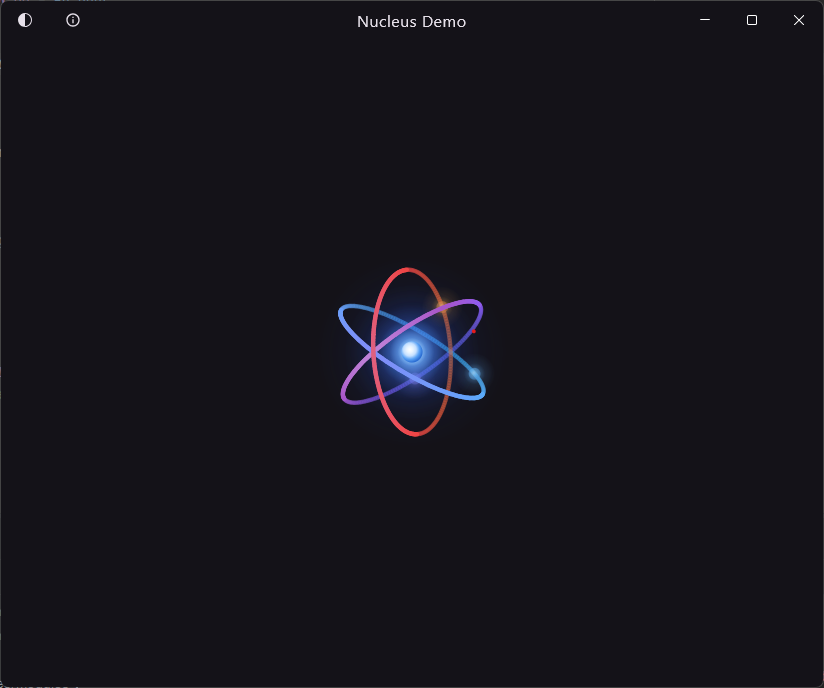
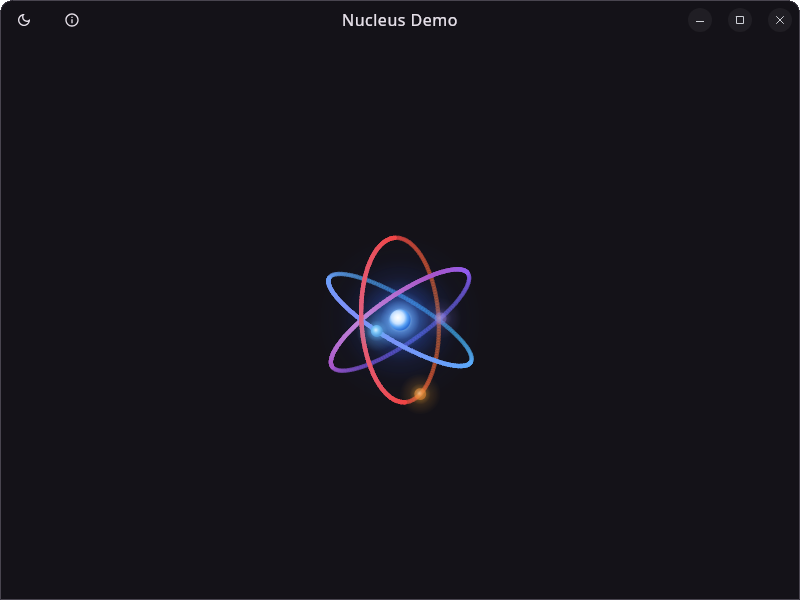
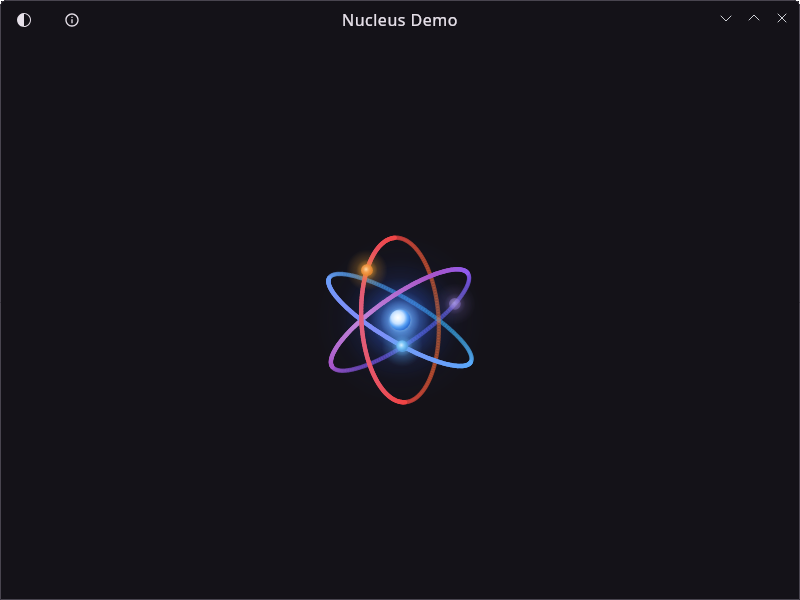
Platform Behavior
JBR module (decorated-window-jbr)
| macOS | Windows | Linux | |
|---|---|---|---|
| Decoration | JBR CustomTitleBar |
JBR CustomTitleBar |
Fully undecorated |
| Window controls | Native traffic lights | Native min/max/close | Compose WindowControlArea (SVG icons) |
| Drag | JBR hit-test | JBR forceHitTest |
JBR.getWindowMove().startMovingTogetherWithMouse() |
| Double-click maximize | Native | Native | Manual detection |
| RTL support | No (requires custom JBR for hot-swap) | Yes (no hot-swap, restart required) | Yes (hot-swap) |
JNI module (decorated-window-jni)
| macOS | Windows | Linux | |
|---|---|---|---|
| Decoration | JNI native bridge | JNI DLL (WndProc subclass) | JNI .so (_NET_WM_MOVERESIZE) |
| Window controls | Native traffic lights | Compose WindowsWindowControlArea (SVG icons) |
Compose WindowControlArea (SVG icons) |
| Drag | nativeStartWindowDrag() via JNI |
Native DLL or Compose fallback | _NET_WM_MOVERESIZE or Compose fallback |
| Double-click maximize | Native via JNI | Native or Compose detection | Compose detection |
| Fallback (no native lib) | AWT client properties | Compose windowDragHandler() |
Compose windowDragHandler() |
| RTL support | Yes (live hot-swap) | Yes (live hot-swap) | Yes (hot-swap) |
On macOS, both modules preserve the native traffic lights.
On Windows, the JBR module uses the native min/max/close buttons, while the JNI module draws its own window controls with Compose (SVG icons matching the Windows style).
On Linux, the window is fully undecorated in both modules. They render their own close/minimize/maximize buttons using SVG icons adapted to the desktop environment (GNOME Adwaita or KDE Breeze). The window shape is also clipped to rounded corners to match the native look.
Components
NucleusDecoratedWindowTheme
Provides styling for all decorated window components via CompositionLocal. Must wrap DecoratedWindow / DecoratedDialog.
NucleusDecoratedWindowTheme(
    isDark: Boolean = true,
    windowStyle: DecoratedWindowStyle = DecoratedWindowDefaults.dark/lightWindowStyle(),
    titleBarStyle: TitleBarStyle = DecoratedWindowDefaults.dark/lightTitleBarStyle(),
) {
    // DecoratedWindow / DecoratedDialog go here
}
The isDark flag selects the built-in dark or light presets. Pass your own windowStyle / titleBarStyle to override any or all values.
DecoratedWindow
Drop-in replacement for Compose Window(). Manages window state (active, fullscreen, minimized, maximized) and platform-specific decorations.
DecoratedWindow(
    onCloseRequest = ::exitApplication,
    state = rememberWindowState(),
    title = "My App",
    icon = null,
    resizable = true,
) {
    TitleBar { state -> /* title bar content */ }
    // window content
}
The content lambda receives a DecoratedWindowScope which exposes:
window: ComposeWindow— the underlying AWT windowstate: DecoratedWindowState— current window state (.isActive,.isFullscreen,.isMinimized,.isMaximized)
DecoratedDialog
Same concept for dialog windows. Uses DialogWindow internally. Dialogs only show a close button on Linux (no minimize/maximize).
DecoratedDialog(
    onCloseRequest = { showDialog = false },
    title = "Settings",
    resizable = false,
) {
    DialogTitleBar { state ->
        Text(title, modifier = Modifier.align(Alignment.CenterHorizontally))
    }
    // dialog content
}
TitleBar / DialogTitleBar
Platform-dispatched title bar composable. Provides a TitleBarScope with:
title: String— the window title passed toDecoratedWindowicon: Painter?— the window iconModifier.align(alignment: Alignment.Horizontal)— positions content within the title bar
TitleBar { state ->
    // Left-aligned icon
    Icon(
        painter = myIcon,
        contentDescription = null,
        modifier = Modifier.align(Alignment.Start),
    )

    // Centered title
    Text(
        title,
        modifier = Modifier.align(Alignment.CenterHorizontally),
        color = LocalContentColor.current,
    )

    // Right-aligned action
    IconButton(
        onClick = { /* ... */ },
        modifier = Modifier.align(Alignment.End),
    ) {
        Icon(Icons.Default.Settings, contentDescription = "Settings")
    }
}
Centered content is automatically shifted to avoid overlapping with start/end content.
Styling
Mapping Your Own Theme
The key idea: NucleusDecoratedWindowTheme accepts two style objects. You build them from whatever color system you use:
// Example: map a custom theme to decorated window styles
val myWindowStyle = DecoratedWindowStyle(
    colors = DecoratedWindowColors(
        border = MyTheme.colors.border,
        borderInactive = MyTheme.colors.border.copy(alpha = 0.5f),
    ),
    metrics = DecoratedWindowMetrics(borderWidth = 1.dp),
)

val myTitleBarStyle = TitleBarStyle(
    colors = TitleBarColors(
        background = MyTheme.colors.surface,
        inactiveBackground = MyTheme.colors.surfaceDim,
        content = MyTheme.colors.onSurface,
        border = MyTheme.colors.outline,
    ),
    metrics = TitleBarMetrics(height = 40.dp),
    icons = TitleBarIcons(), // null = use platform defaults
)

NucleusDecoratedWindowTheme(
    isDark = MyTheme.isDark,
    windowStyle = myWindowStyle,
    titleBarStyle = myTitleBarStyle,
) {
    DecoratedWindow(...) { ... }
}
DecoratedWindowStyle
Controls the window border (visible only on Linux):
| Property | Description |
|---|---|
colors.border |
Border color when window is active |
colors.borderInactive |
Border color when window is inactive |
metrics.borderWidth |
Border width (default 1.dp) |
TitleBarStyle
Controls the title bar appearance:
| Property | Description |
|---|---|
colors.background |
Title bar background when active |
colors.inactiveBackground |
Title bar background when inactive |
colors.content |
Default content color (exposed via LocalContentColor) |
colors.border |
Bottom border of the title bar |
colors.fullscreenControlButtonsBackground |
Background for macOS fullscreen traffic lights |
colors.iconButtonHoveredBackground |
Background for icon buttons on hover |
colors.iconButtonPressedBackground |
Background for icon buttons on press |
metrics.height |
Title bar height (default 40.dp) |
metrics.gradientStartX / gradientEndX |
Gradient range (see below) |
icons |
Custom Painter for close/minimize/maximize/restore buttons (null = platform default) |
Gradient
The TitleBar composable accepts a gradientStartColor parameter. When set, the title bar background becomes a horizontal gradient that transitions from the background color through gradientStartColor and back to background:
The gradient range is controlled by TitleBarMetrics.gradientStartX and gradientEndX.
TitleBar(
    gradientStartColor = Color(0xFF6200EE),
) { state ->
    Text(title, modifier = Modifier.align(Alignment.CenterHorizontally))
}
When gradientStartColor is Color.Unspecified (the default), the background is a solid color.
macOS Fullscreen Controls
On macOS, use the newFullscreenControls() modifier on TitleBar to enable the new-style fullscreen controls (traffic lights stay visible in fullscreen mode with a colored background):
With decorated-window-jbr, this sets the apple.awt.newFullScreenControls system property and uses fullscreenControlButtonsBackground from your TitleBarStyle.
With decorated-window-jni, fullscreen button management is handled natively — the modifier is a no-op but safe to call.
ProGuard
Both modules use JNI on macOS. When ProGuard is enabled, the native bridge classes must be preserved. The Nucleus Gradle plugin includes these rules automatically, but if you need to add them manually:
# Nucleus decorated-window-jbr JNI
-keep class io.github.kdroidfilter.nucleus.window.utils.macos.NativeMacBridge {
    native <methods>;
}

# Nucleus decorated-window-jni JNI (all platforms)
-keep class io.github.kdroidfilter.nucleus.window.utils.macos.JniMacTitleBarBridge {
    native <methods>;
}
-keep class io.github.kdroidfilter.nucleus.window.utils.windows.JniWindowsDecorationBridge {
    native <methods>;
}
-keep class io.github.kdroidfilter.nucleus.window.utils.linux.JniLinuxWindowBridge {
    native <methods>;
}

-keep class io.github.kdroidfilter.nucleus.window.** { *; }
RTL (Right-to-Left) Layout Support
Windows
Both modules support RTL layout on Windows, but they differ in how they handle runtime direction changes:
decorated-window-jbr: Supports RTL layout, but does not support hot-swapping between RTL and LTR at runtime. If your application needs to switch layout direction, the user must restart the application for the change to take effect.decorated-window-jni: Supports RTL layout with live hot-swapping — the title bar and window controls update immediately when the layout direction changes at runtime, with no restart required.
macOS
The standard JetBrains Runtime does not support RTL for the title bar on macOS — the traffic lights and title bar layout always remain in LTR mode.
Two options are available for RTL support on macOS:
decorated-window-jni: Fully supports RTL layout with live hot-swapping, no custom JDK required.decorated-window-jbrwith the custom JBR fork (v25.0.2b329.66-rtl): Supports RTL layout with live hot-swapping as well. This fork includes a native RTL fix for macOS window decorations.
Linux
RTL layout is handled entirely by Compose since the window is fully undecorated on Linux. Both modules support RTL with live hot-swapping.
Linux Desktop Environment Detection
On Linux, the module detects the current desktop environment and loads the appropriate icon set:
- GNOME — Adwaita-style icons, rounded top corners (12dp radius)
- KDE — Breeze-style icons, rounded top corners (5dp radius)
- Other — Falls back to GNOME style
Detection uses XDG_CURRENT_DESKTOP and DESKTOP_SESSION environment variables.